
If your card has expired (or was stolen) and you need to add a new card to your profile, below are instructions on how to do that.
First log into your Learning the Harp profile. Now click on your profile picture in the top right corner of your screen (if you haven’t added one yet, it’ll just be an icon of a head and shoulders). A dropdown menu will appear:
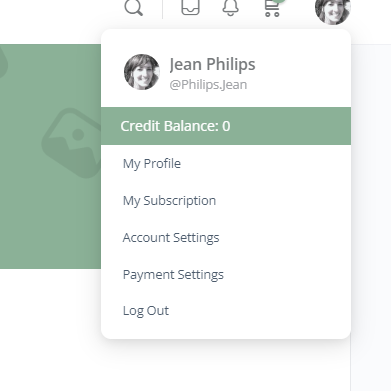
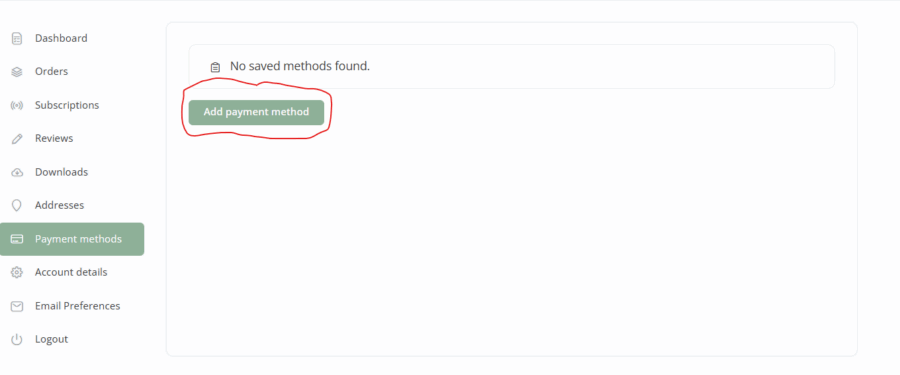
Select ‘Payment Settings‘. Once the new screen has loaded, you’ll see a menu on the left side of your screen. You will see ‘Payment Methods‘. Click on that.
Once you’ve selected ‘Payment Methods’, you’ll see your current card details on the page. You will need to delete those details, so you can just click on ‘Delete‘.
Now click on ‘Add a Payment Method‘.
To note, when you are adding your payment method, you have the option to add your card details to Stripe Link:
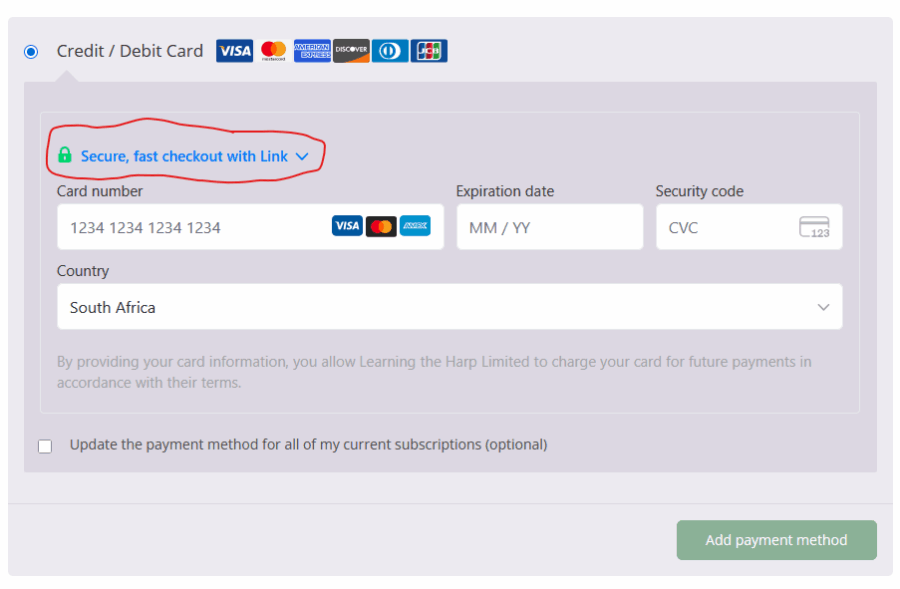
Stripe Link is Stripe’s fast-checkout system that securely saves a customer’s payment details so they can pay on any Stripe-powered website without re-entering their card information. Its purpose is to make checkout quicker and reduce failed or abandoned payments. However, because Link relies on a stored connection, issues can occur if that connection expires or is disconnected, which may cause payments to fail until the customer re-enters their card details manually.
This is purely optional – you can still add your card details as per normal by not clicking on the above link (in the screenshot above) and just going straight to adding your new card details.
Once you’ve added your new card details, click on ‘Add Payment Method‘.
On mobile devices this process is slightly different. When you log into your profile you’ll see 3 lines on the top left corner. Click on those lines. This list below should appear. Scroll down until you see ‘Payment Settings’. Click on ‘Payment Settings‘.
You will be able to see your card details in the next page that loads. You will need to delete that payment method and add a new one.
Click on ‘Add Payment Method‘. To note, when you are adding your payment method, you have the option to add your card details to Stripe Link.
Stripe Link is Stripe’s fast-checkout system that securely saves a customer’s payment details so they can pay on any Stripe-powered website without re-entering their card information. Its purpose is to make checkout quicker and reduce failed or abandoned payments. However, because Link relies on a stored connection, issues can occur if that connection expires or is disconnected, which may cause payments to fail until the customer re-enters their card details manually.
This is purely optional – you can still add your card details as per normal by not clicking on the above link and just going straight to adding your new card details.
Once you’ve added your new card details, click on ‘Add Payment Method‘.
If you have any further questions, or you’re struggling with anything, please feel free to email Glenda at [email protected].