
Some general guidance
- Choose a room in your house with a strong WIFI signal.
- Lighting: Choose a bright environment for your Zoom session. Here are two ways to ensure your lighting is good:
- Indoors, facing a window that is letting in lots of natural light. Place the laptop or computer between you and the window.
- If a dark room is your only option, turn on all the lights and possibly add an extra light source such as a lamp in front of you, giving light to your face and hands.
How to position yourself and the device you’re using for Zoom
- It’s generally easiest to use a laptop as the screen is bigger. (If you’re using a smartphone, you’ll need a tripod to position the phone correctly. Using a smartphone can also make it harder for you to see the person you’re interacting with in the session).
- Your laptop should be to your left of where you are sitting. This way, the camera shows the left side of your body and harp so that we can see your hands on the harp strings (See pictures below).
- Take note of the height of your laptop. It mustn’t be too high or too low. The camera must be at the height of your eyes and not below, otherwise we can’t see the exact position of your wrist, etc. You may need to put your laptop on top of a box on a small table.
- You should be close enough to the laptop so that the picture fits your face at the top and your hands at the bottom. It should not show the whole of your body. We need to see both of your hands clearly as you are playing your harp. Test it out with your hands on the harp, so that we can still see even if you are playing the lowest strings.
This is the angle you should see when you look at yourself on Zoom:
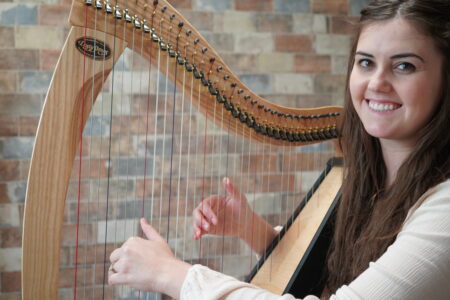
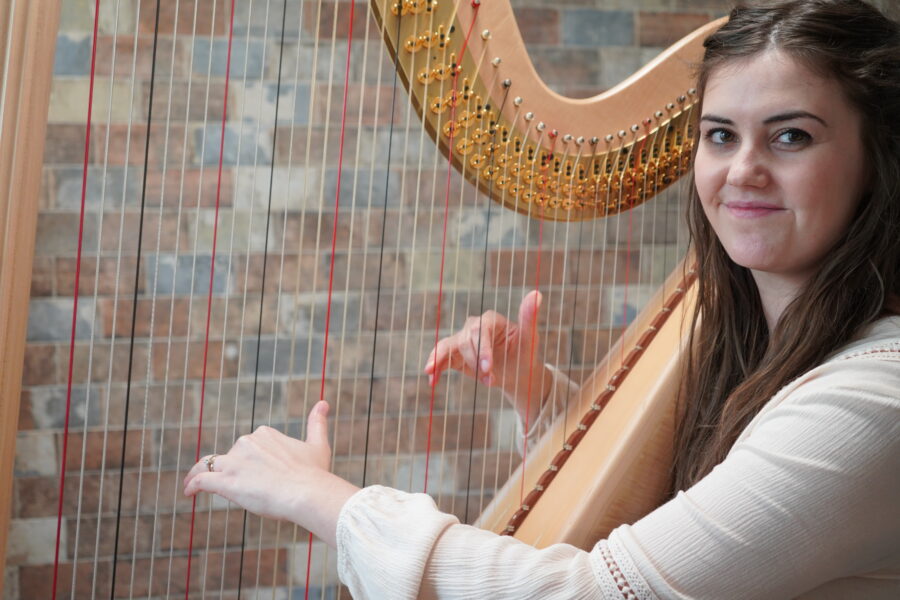
This can take some trial and error, so it’s best to try this out in advance. It will give you enough time to figure out the height and placement of your computer, harp, and the distances from each other.
How to configure your Zoom settings to ensure your harp can be heard
Right, now your camera and harp are in the right place for us to see you, but we also need to make sure we can HEAR you clearly. As part of its background noise cancelling functionality, Zoom picks up sounds like the harp as background noise, so it filters out its sound. To ensure we can hear you when you play your harp, please correctly configure your Zoom audio settings by following the steps and instructions in this next article:
How To Configure Your Audio Settings For Playing Harp on Zoom